You can fix WordPress SEO issues with AI without handing your site over to a tool that acts on its own. The approach that works is simple: scan for real problems, read the suggested fix before it touches anything, then approve or dismiss it yourself.
Most site owners already know roughly what needs doing. Titles are missing, images lack ALT text, a few internal links point nowhere. The problem is finding every instance across dozens of pages and then making the changes carefully, one by one, without breaking anything.
This guide walks through a practical four-step workflow: scan, review, fix, undo. It uses Ask Writrex, an AI agent built into Writrex Lite (free) and the paid Writrex plugin, but the principles apply to any tool that shows you what it plans to do before it acts.
Why fixing SEO on an existing site eats so much time
A new site is easy to audit. An existing one, especially one that has grown over years, is a different matter. Pages accumulate without anyone noticing that half of them share the same meta description, or that a heading structure that made sense in 2021 now skips levels in ways that confuse both readers and search engines.
The audit itself is only part of the work. Once you have a list of issues, you still have to open each page, find the right field, write something better, save it and move on. For a site with fifty pages that might mean an afternoon. For a site with five hundred, it becomes a project that never quite gets finished.
Common time sinks include tracking down every image that is missing ALT text, finding plain-text phone numbers that should be clickable links, and checking which pages are accidentally hidden from search. Our meta titles and descriptions audit checklist gives a sense of how many details a thorough review covers, even before you start making changes.
The problem with AI tools that guess or act without asking
There are two kinds of AI SEO tool, and both have real drawbacks.
The first kind gives you a report and stops there. It tells you a meta description is too short but leaves you to write a better one, find the right settings screen and paste it in. Useful, but still slow.
The second kind goes further and edits your site directly. That sounds efficient until it rewrites a heading in a way that no longer matches your brand, or changes a slug and breaks every link pointing to that page. If there is no clear record of what changed, or no easy way to reverse it, you are left checking whether anything else broke.
Neither approach is wrong exactly, but both ask you to either do all the work yourself or trust the AI completely. Most site owners want something in between: a tool that does the reading and drafting, but waits for a human decision before anything moves. That is where approval-based workflows make a real difference, and it is the gap that tools like Ask Writrex are designed to fill.
Step 1: Scan your site with SEO Reports
Go to Writrex → Ask Writrex → SEO Reports and run a scan. The report checks every published page and post against a set of essential criteria: missing or poorly sized meta titles and descriptions, H1 problems detected on the live page a visitor actually sees, skipped heading levels, images without ALT text, broken internal links, pages blocked from search, and plain-text phone numbers or emails that should be clickable.
That last point matters more than it sounds. Google’s guidance on snippets and meta descriptions makes clear that what appears in search results is drawn from the live page, not just what you typed into a settings field. SEO Reports fetches the live, logged-out version of each page, so if your theme is overriding a title or your SEO plugin is not outputting what you expect, the report will catch it.
Each scan saves a site score, so you have a baseline to work from. The report does not just tell you something is wrong. It tells you exactly which page, what the issue is, and how serious it is.
Step 2: Click “Fix with Ask Writrex” on any issue
Every issue in the report has a Fix with Ask Writrex button. Click it and a focused chat opens, pre-loaded with the context for that specific problem. You do not need to describe the issue or paste in a URL. Ask Writrex has already read the page, including its current SEO fields, headings, images and word count.
From there you can ask it to suggest a fix, explain why the issue matters, or do both. For example, clicking the button on a page flagged for a missing meta description might prompt you to type something as simple as “Fix it.” Ask Writrex reads the page content, drafts a description that fits the page, and presents it for your review. Nothing has changed on the site yet.
You can also skip the report entirely and open a chat directly, using prompts like “Analyse my whole site and show me the most important SEO issues” or “Fix the missing ALT text on this page.” The Ask Writrex documentation lists more example prompts if you want to see the range of what it understands.
Step 3: Review the change card before anything moves
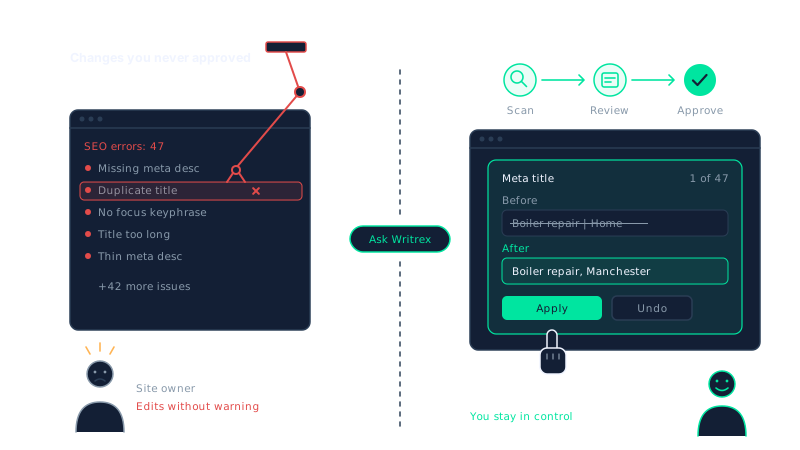
Once Ask Writrex drafts a fix, it does not apply it. It presents a change card. This is the part that matters most if you are nervous about AI editing your site.
The card shows you the before and after side by side. If the fix is a meta description, you see the current text (or a note that none exists) next to the suggested replacement. If it is an image ALT attribute, you see the filename and the proposed text. You can read both in a few seconds and decide whether the suggestion is right.
From the card you have four options: Preview on site, Apply, “I’ll do it myself” or Dismiss. Preview on site renders the change in your browser as a logged-out visitor would see it, without saving anything. This is useful when you want to check how a new page title reads in context, or whether a heading change affects the flow of the page.
If the suggestion is not quite right, you can ask Ask Writrex to revise it in the chat before you do anything. There is no pressure to accept the first draft. You might type “make it shorter” or “the tone is too formal” and get a revised card to review again.
One guard worth knowing about: Ask Writrex checks that the page has not been edited since it made the suggestion. If someone else saved a change in the meantime, it will not overwrite their work. It flags the conflict instead.
Step 4: Apply the fix, and undo it if you change your mind
When you press Apply, the change goes through. For most edits, that means one field or one block on one page. Nothing else on the site is touched.
Every applied change is recorded in Change History, with a note of who approved it and when. If you apply a fix and then decide it was wrong, one click in Change History reverses it. For content edits, a WordPress revision is also saved, so you have a second safety net through the standard editor.
This is a practical difference from letting an AI tool run unsupervised. If you fix WordPress SEO issues with AI and something looks wrong a week later, you can see exactly what was changed, by whom and at what time, then restore the previous version without digging through backups.
A few things Ask Writrex will refuse to do regardless of your instructions. A change that would leave a page with no H1 heading is blocked. Unsafe CSS is rejected. New posts and pages are always saved as drafts, never published automatically. These are not settings you need to configure. They are built into the workflow.
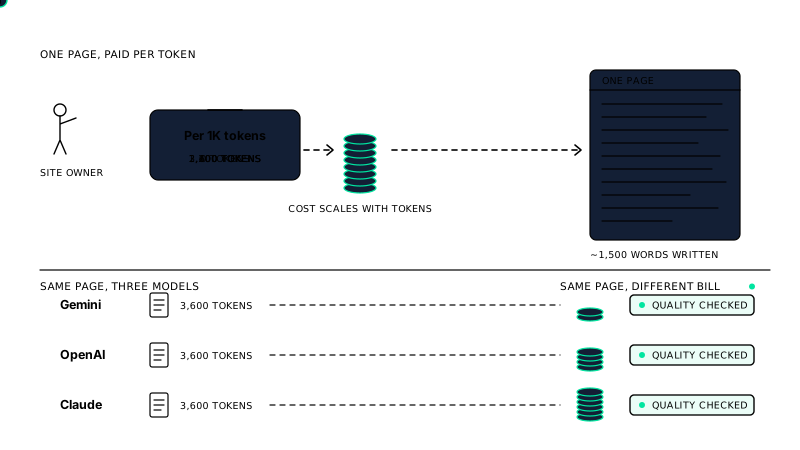
If you want to understand the broader cost implications of running AI tasks like these through your own API key, the breakdown in what AI content really costs per page gives a useful comparison across providers.
What Ask Writrex can actually fix
The scope is specific, which is a feature rather than a limitation. Ask Writrex works on the things that cause the most common SEO problems and that are safe to change without touching your theme or plugin code.
On any page or post it can fix:
- SEO title, meta description, focus keyphrase and canonical URL, written into whichever SEO plugin you use – Yoast SEO, Rank Math, All in One SEO, SEOPress or The SEO Framework. If you have none installed, Writrex prints the tags itself.
- Image ALT text, across one page at a time.
- Page title, excerpt, slug and featured image.
- Page text, a single block, or a heading’s wording and level.
- Links: re-pointing or removing a link to a specific address across a page.
- Plain-text phone numbers and email addresses, converted to clickable links. This matters for mobile visitors and is one of the checks the SEO Reports scan flags directly.
- Additional CSS, with unsafe rules refused automatically.
It can also draft new posts and pages, though these are always saved as drafts. Nothing is published without you pressing the button yourself.
If you want to fix WordPress SEO issues with AI across a broader content strategy – blog topics that do not overlap what you have already written, or internal linking gaps – Ask Writrex can advise on those too, even if the actual linking work sits in a separate part of the plugin. The internal linking and orphan detection features handle that side of things.
Page builders, safety and privacy
If your site uses Elementor, Divi, WPBakery or a similar page builder, Ask Writrex detects this and adjusts what it offers. It will still fix SEO fields, ALT text, featured images and site-wide CSS. What it will not do is attempt layout edits that could corrupt the builder’s own data structure. Instead it tells you what to change and where to find it in the builder. That is a more honest approach than silently attempting an edit and leaving the page broken.
On the safety side, it never edits PHP files, theme files, plugins or the database directly. WordPress roles are respected throughout: you can only apply a change that your role already permits. Administrators can use Ask Writrex by default; Editors can too, unless you switch that off in settings.
Privacy is handled at the API level. Ask Writrex sends only what it needs to answer your question: your message, the current chat, your site name and address, and the specific site data it looks up. API keys, passwords and users’ email addresses are never sent. If you would rather the AI work from titles, SEO fields and page structure alone, you can switch off the “Send page text to the AI provider” setting. OpenAI requests are made with storage disabled on OpenAI’s side. For anyone weighing up which provider to use with their own API key, the cost comparison across Gemini, OpenAI and Claude is worth reading before you commit.
Which AI provider should you use
Writrex Lite connects to Google Gemini and uses your own Gemini API key. Paid Writrex plans add OpenAI and Anthropic Claude as options. You choose the provider and model before each chat, and you can set a default in settings.
For most site owners starting out, Gemini is the practical choice. Google’s free tier covers a reasonable volume of requests, so you can fix WordPress SEO issues with AI without paying anything beyond your Writrex subscription. When you need faster responses or better results on longer pages, a paid Gemini plan is worth the step up.
If you already have an OpenAI or Claude API key from other work, you can bring that in instead. There is no meaningful difference in the quality of SEO fixes between providers at a comparable tier. The main variables are speed, cost per request and how each model handles longer page content. If you are unsure which to choose, the cost comparison across Gemini, OpenAI and Claude breaks down real per-page costs so you can make an informed decision rather than guessing.
One thing worth knowing: if a model is busy or unavailable, Ask Writrex will move to another model from the same provider. It will never switch you to a different provider without you choosing that. Your key stays with the provider you selected.
You also control how much effort each chat uses. The Low, Medium and High effort settings let you trade speed against thoroughness. A quick check on a single missing meta description needs less effort than a whole-site analysis. Adjusting this keeps your API costs predictable.
For a full breakdown of setup options and provider settings, the Writrex documentation covers each step, including how to add your API key and switch providers mid-project if your needs change.
Frequently asked questions
Does Ask Writrex change my site automatically?
No. Every fix arrives as a change card and waits for you to press Apply. Nothing on your site moves until you approve it. If you change your mind after applying, Change History lets you undo it with one click, and WordPress keeps a revision for content edits.
Can I use Ask Writrex to fix WordPress SEO issues with AI if my site uses Elementor or Divi?
Yes, with some limits. Ask Writrex detects page builders and still fixes SEO fields, ALT text, featured images and site CSS on those pages. For layout edits that could break the builder, it tells you exactly what to change inside the builder rather than attempting the edit itself.
Which SEO plugins does it work with?
It writes SEO titles, meta descriptions, focus keyphrases and canonical URLs into Yoast SEO, Rank Math, All in One SEO, SEOPress and The SEO Framework. If you have none of those installed, Writrex outputs the tags directly.
Is Writrex Lite really free, and what does it include?
Writrex Lite is free to download and includes Ask Writrex, SEO Reports, Change History and Google Gemini support using your own API key. Gemini has a free tier, so many site owners can run a full SEO audit and apply fixes without paying anything beyond the plugin itself.
What happens to my data when I send a page to the AI?
Ask Writrex sends only what it needs: your message, the current chat, your site name and URL, and the specific page data it looks up. API keys, passwords and users’ email addresses are never sent. You can also turn off the “Send page text to the AI provider” setting if you prefer the AI to work from titles and structure alone.
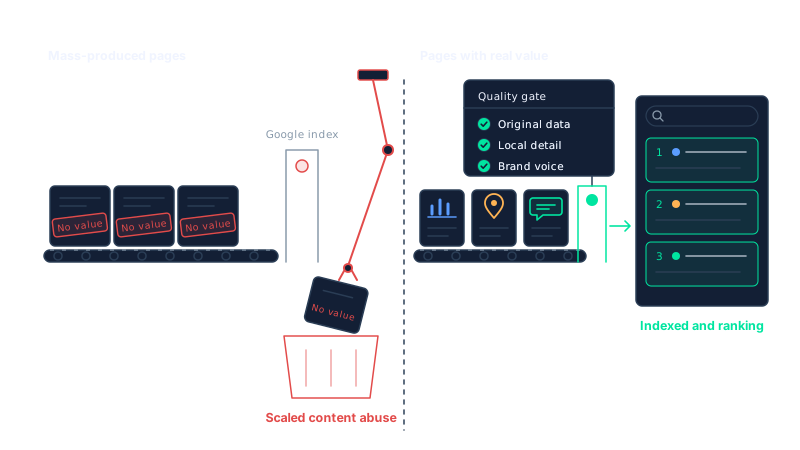
If you want to go deeper on any of these topics, the Ask Writrex feature page covers the full capability set, and the guide to what Google actually says about AI-generated content is useful background before you scale up.
Writrex writes from your real business facts and checks every page before it publishes. Start with Writrex Lite for free.