Gutenberg templates for AI pages let you generate location or service pages that look like your actual site, not a generic layout dropped in by a third-party plugin. If you are on the WordPress block editor or a block theme, you already have everything you need to build a proper page template without installing Elementor or any other page builder.
The approach is straightforward. You build a template from core WordPress blocks, connect each block to a Writrex field, and your theme’s typography, colours and spacing apply automatically. There is no separate design system to learn and no builder licence to pay for.
This guide covers how block editor templates are structured, how to connect and style them, and how to manage design changes across dozens of generated pages.
Why block editor templates work without a page builder
Page builders solve a real problem: they give you a drag-and-drop canvas when the default editor feels too limited. But if you are already on a block theme, that problem does not really exist. Core blocks give you columns, groups, covers, backgrounds, custom typography and spacing controls. That is most of what a page builder offers, built into WordPress itself.
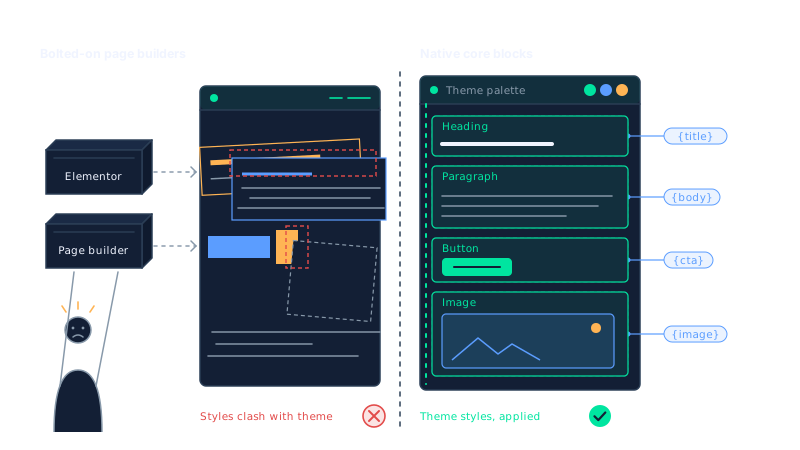
Block editor templates take advantage of this. They are made entirely from core blocks, so they inherit your theme’s global styles without any extra configuration. A Heading block in your template uses the same font and weight as every other heading on your site. A Button block picks up your theme’s button colours. You do not need to restyle anything from scratch.
This also matters for performance. No page builder means no additional JavaScript or CSS loading on every generated page. The output is clean block markup, the same as any other page you build in the editor.
For sites generating content at scale, consistency is the bigger argument. When your theme updates or you adjust your global styles, every block editor page reflects that change automatically. A page builder template often needs manual attention after a theme update.
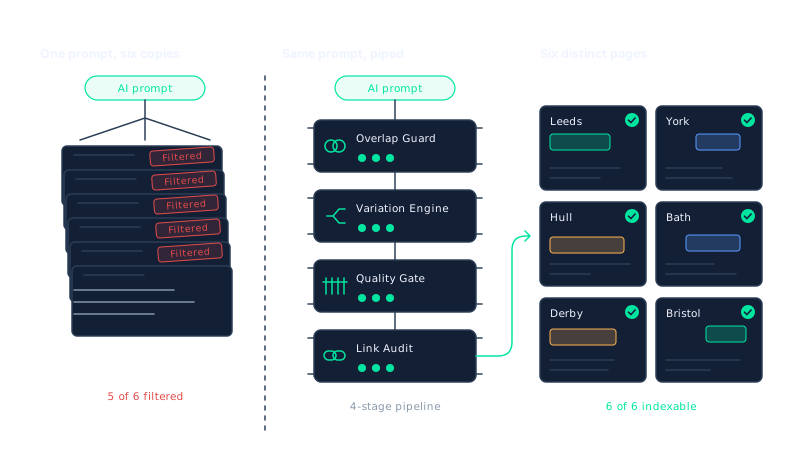
If you want to understand how the content quality side works alongside the design, the 38-check quality gate runs on every generated page regardless of which template type you use.
What you need before you start
There are a few practical requirements to check before building your first block editor template.
- WordPress 6.7 or newer. Block editor templates require at least this version. Check your dashboard under Dashboard, Updates if you are unsure.
- A block theme or the default block editor. Classic themes with a page builder as the primary editor are better served by an Elementor template or the HTML template. If your site uses Twenty Twenty-Four, Kadence, GeneratePress in block mode, or any FSE theme, you are in the right place.
- A Writrex Starter plan or above. Starter includes three block editor templates, counted separately from any Elementor or HTML templates on your account. Professional and above give you unlimited templates.
- Your brand profile set up. Templates pull from your brand settings, so your brand profile should include your tone of voice, service areas and any case studies or pricing you want the generated content to reference.
You do not need to install any additional plugins. The block editor template builder is part of Writrex itself, and the blocks it adds sit alongside your core blocks in the standard editor interface.
How block editor templates are structured
When you create a new block editor template in Writrex, you start with a ready-made layout. Every field is already connected, every button link is already wired up, and the structure mirrors the Writrex default page design. You are not building from a blank canvas.
The layout uses standard core blocks throughout: Groups and Columns for structure, Cover blocks for hero sections, Heading and Paragraph blocks for copy, List blocks for service points, and Button blocks for calls to action. The core Featured Image block handles the hero image. Nothing in the template requires a third-party block library.
Writrex adds three of its own blocks to this mix: a Field block, an FAQ block, and a Related Pages block. Each has its own colour, typography and spacing controls, so you can style them to match your theme without touching any code. They sit in the inserter alongside your core blocks and behave the same way.
Two fields worth noting are Hero Title with Accent, which lets you highlight part of the page title in a different colour, and Call Button Text, which controls the primary call-to-action label. These are specific to generated pages and give you more control over the top of the page than a plain Heading block would.
Each generated page holds its own copy of the template design at the point it was created. That separation is intentional, and it matters when you start pushing updates, which is covered in the next section.
Connecting core blocks to Writrex fields
This is where Gutenberg templates for AI pages become genuinely useful. Any Heading, Paragraph, List item, Button or Image block in your template can be connected to a Writrex field. You do it from the Attributes panel in the block editor sidebar, the same panel you use to set an anchor or add a CSS class.
Select a block, open the Attributes panel, and choose the field you want it to pull from. From that point, when Writrex generates a page, that block is populated with the right content automatically. A Heading block connected to the Hero Title field gets the page’s main heading. A Paragraph block connected to the intro field gets the opening copy. A Button connected to the Call Button Text field gets the correct label and link.
You are not writing any shortcodes or custom templates. The connection is set in the editor interface, and the generated content flows into the block structure you have already styled.
Because the blocks are standard core blocks, the content they receive is treated as ordinary block content by WordPress. That means your structured data and SEO plugin integrations, including Yoast, Rank Math, AIOSEO, SEOPress, The SEO Framework and the schema audit, all read the output correctly. There is no wrapper or shortcode layer getting in the way.
If you need to edit the text on a generated page after it has been created, you do that through the Writrex Page Content Editor on the page’s edit screen, not by editing the blocks directly. The block template controls the design; the Page Content Editor controls the words. Keeping those two concerns separate makes it much easier to manage pages at scale, particularly for local landing pages where the structure stays consistent but the copy changes for each location.
Styling your template with standard block tools
Once your blocks are connected to fields, you style the template exactly as you would any other page in the block editor. There is no separate design panel, no proprietary interface and no need to learn a new system. Colours, typography, spacing, column layouts, groups, covers and background settings are all controlled through the standard block toolbar and sidebar.
That is the practical advantage of Gutenberg templates for AI pages: your theme’s global styles already apply. If your theme sets a specific heading font, line height and colour palette, every connected Heading block in your template inherits those settings automatically. You are working with the design system you already have, not fighting against it.
Where you want to go further, you can. Wrap sections in Group blocks and give them a background colour. Use Cover blocks for the hero area. Set column counts and gap sizes with the Columns block. Add spacing above and below individual blocks using the dimensions controls. All of it is available without installing anything extra.
One thing to be aware of: the Writrex Colour Customiser, which applies to HTML templates, does not carry over to block editor templates. That is not a limitation, it is just a different approach. With a block editor template, you control colour directly on the blocks themselves, which gives you more precision and keeps everything inside the editor you are already using.
The Writrex Field, FAQ and Related Pages blocks each carry their own colour, typography and spacing settings too, so they can be styled to sit naturally alongside your core blocks without any visual inconsistency.
Managing design updates across generated pages
Each generated page holds its own copy of the template design at the point it was created. If you later change the template, those existing pages are not automatically updated. That is intentional.
When you are ready to push a design change to specific pages, you choose which pages receive the update. That selective push means you can test a layout change on one or two pages before rolling it out more broadly. If the update causes a problem, the Restore previous design option undoes the last push on those pages.
This matters most when you are running a large set of generated pages, for example a set of location pages that need to stay internally consistent while you refine the design over time. You are not forced to accept a blanket update across every page the moment you make a template change.
Text on generated pages is edited separately through the Writrex Page Content Editor on each page’s edit screen. The template controls the structure and design; the Page Content Editor controls the words. Keeping those two concerns separate makes bulk management much more predictable, because a design change cannot accidentally overwrite copy, and a copy edit cannot disturb the layout.
If your site generates a significant volume of pages, it is worth reviewing how internal linking is handled alongside your template work. Orphan detection and overlap checking run across your generated pages, so new pages slot into your site’s link structure rather than sitting in isolation.
Elementor vs block editor vs HTML template: which one should you use?
The honest answer is that the right choice depends on what your site is already built with, not on which option sounds most capable.
If your site uses Elementor, use an Elementor template. Your global styles, widget settings and design tokens all live inside Elementor. A block editor template cannot reach any of that, so generated pages would look disconnected from the rest of the site. The practical guide to Elementor templates for AI pages covers that workflow in full.
If your site runs on the default block editor or a block theme, a block editor template is the right fit. This is exactly the scenario this article has been addressing. Your theme’s type scale, colour palette and spacing presets apply automatically. You do not need to install a page builder, and you do not need to recreate your design from scratch inside a separate tool. The generated pages look like the rest of your site because they are built with the same blocks your site already uses.
If you have no particular design and are not working with a custom theme, the HTML template with the Colour Customiser is the simplest starting point. It requires no configuration of blocks or layouts. You pick your colours through the Writrex Colour Customiser, and generated pages take on a clean, consistent look without any manual block work. It is a reasonable choice for sites where speed of setup matters more than design control.
A quick reference
| Your setup | Recommended template type |
|---|---|
| Elementor-built site | Elementor template |
| Block editor or block theme | Block editor template |
| No custom design or theme | HTML template with Colour Customiser |
On the plan side, Writrex Starter includes three block editor templates, counted separately from any Elementor or HTML templates on the same account. Professional and above give you unlimited templates of each type, which is worth considering if you are building Gutenberg templates for AI pages across multiple sites or client accounts.
The full comparison, including notes on when you might combine template types, is covered at Writrex page builder and template options.
Frequently asked questions
Do Gutenberg templates for AI pages work with any block theme?
Yes, provided you are running WordPress 6.7 or newer. Block editor templates inherit your active theme’s type scale, colour palette and spacing presets automatically. If your theme registers custom styles through theme.json, those apply to generated pages in the same way they apply to any other page on the site.
Can I edit the text on a generated page without breaking the layout?
Yes. Generated page text is edited through the Writrex Page Content Editor on the page’s own edit screen. That keeps copy editing separate from the block layout, so there is no risk of accidentally moving or deleting a block while you are updating a paragraph or heading.
How many block editor templates can I create?
Writrex Starter includes three block editor templates, counted separately from any Elementor or HTML templates on the same account. Professional and above give you unlimited templates of each type. If you are managing multiple sites or client accounts, the unlimited tier is worth considering from the outset.
Will SEO plugins read content on pages built with a block editor template?
Yes. Yoast, Rank Math, AIOSEO, SEOPress, The SEO Framework and others all read the content on generated pages normally. The quality gate, schema output and link audit also run across these pages, so your SEO workflow does not change depending on which template type you are using.
What happens if I push a design update to the wrong pages?
Each generated page keeps its own copy of the design. When you push an update, you choose which pages receive it. If you make a mistake, Restore previous design undoes the last push on those pages. You can also review how the full template workflow is documented before making changes across a large set of pages.
Block editor templates give you a straightforward path to AI-generated pages that look like the rest of your site, with no extra plugins, no design recreation and no dependency on a page builder. If you want to understand how the wider content pipeline fits together, the Writrex documentation covers templates, brand profiles, quality checks and linking in one place.
Writrex writes from your real business facts and checks every page before it publishes. Start with Writrex Lite for free.