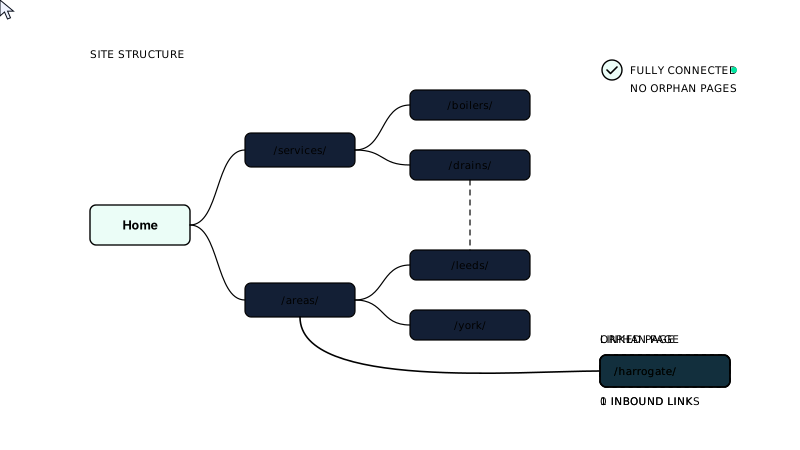
Orphan pages on WordPress are pages that no other page on your site links to. Search engine crawlers discover pages by following links, so if a page has no internal links pointing to it, crawlers may never find it, and users certainly will not stumble across it through normal browsing.
The fix is straightforward in principle: find the orphaned pages, decide whether they are worth keeping, then either add internal links to them or remove them entirely. The tricky part is finding them in the first place, because WordPress gives you no built-in way to spot pages that have been left behind.
This guide walks through exactly how to do both, starting with what orphan pages actually are and why they matter for your rankings.
What is an orphan page?
An orphan page is any page, post, product or other piece of content on your site that receives zero internal links from other pages. It exists in your database and may even be indexed, but nothing on your site points to it. It sits alone, disconnected from the rest of your content structure.
The term comes from information architecture. Think of your site as a web of connected documents. Every healthy page should have at least one path leading to it from somewhere else on the site, whether that is a navigation menu, a category archive, a related posts section or a contextual link within body copy. An orphan has none of these.
A few common examples:
- A landing page built for a paid campaign, then forgotten after the campaign ended
- A product page left behind after a category was reorganised
- A blog post published without being added to any category or mentioned in any other post
- A service page created during a site redesign that was never wired into the navigation
It is worth distinguishing orphan pages from pages that are simply hard to reach. A page buried four or five clicks deep in your site is not an orphan, just poorly positioned. An orphan has no path to it at all through internal links.
Why orphan pages damage your SEO
The damage happens on several levels at once, and each one compounds the others.
Crawlers may never find them
Googlebot and other crawlers follow links. If no page links to a given URL, a crawler has to rely on your XML sitemap or a direct fetch request to discover it. Many sites have sitemaps that fall out of sync with their actual content, so orphan pages often go undiscovered for months or longer. A page that is not crawled regularly is a page that cannot rank.
This becomes a crawl budget problem on larger sites. Google allocates a finite amount of crawl activity to each site based on its authority and server performance. Orphan pages that do get crawled consume part of that budget without contributing anything back, because they receive no link equity and pass none on. Keeping your crawl budget focused on pages that matter is one of the clearest wins available in a technical site audit.
They receive no PageRank
Internal links pass authority around your site. A page that earns backlinks from external sites shares some of that authority with pages it links to, which share it further, and so on. An orphan page sits outside this flow entirely. Even if it covers a genuinely useful topic, it starts every ranking contest at a disadvantage because it carries no internally passed authority.
They signal structural problems to search engines
A site with many orphan pages looks disorganised. Search engines use site structure as a signal of quality and coherence. A well-linked site tells a crawler which pages are important, how topics relate to each other, and where the depth of expertise lies. Orphan pages break that signal. They suggest that content has been published without thought for how it connects to anything else.
Tools like Writrex’s internal linking with orphan and overlap detection are designed precisely to catch these disconnections before they become a ranking problem, flagging pages that lack inbound internal links so you can act on them early rather than discovering the issue months later during a full audit.
Users cannot find them either
SEO aside, an orphan page is simply unreachable for anyone browsing your site. If a visitor lands on your homepage and follows links through your content, they will never encounter an orphan page. That means any value the page offers, whether it is a detailed guide, a product, or a case study, is effectively invisible to the people most likely to convert.
Common causes of orphan pages on WordPress sites
Orphan pages rarely appear by accident in one go. They tend to accumulate gradually, often as a side effect of normal site management. Knowing the typical causes makes them easier to prevent and faster to spot.
Content published without a linking plan
The most common cause is simply publishing a page or post without adding it to any navigation, category, tag archive or existing piece of content. WordPress makes it easy to hit Publish, but nothing in the default editor prompts you to link the new page from somewhere else. Over time, especially on sites with multiple contributors, this habit produces dozens of disconnected pages.
Category and tag restructuring
If you reorganise your taxonomy, removing a category or merging tags, any posts that belonged solely to the deleted term can lose their only route into the site. The posts still exist, but the archive page that listed them is gone.
Menu and navigation changes
Removing a page from the main menu or footer without redirecting it or linking to it from elsewhere is a reliable way to create an orphan. This happens often during redesigns, when agencies rebuild navigation and quietly drop pages that no longer fit the new structure.
Imported or migrated content
Migrating from another CMS, or importing a batch of posts via CSV, rarely brings the internal links with it. The content arrives intact, but the connections to the rest of the site do not.
WooCommerce product and variation pages
Product variations, hidden products and draft pages that were accidentally published are frequent culprits on WooCommerce sites. A product removed from its category but not deleted will sit in the database with a live URL and no inbound links.
Old campaign and landing pages
Seasonal or paid-campaign landing pages are often built in a hurry and linked only from an ad or an email. Once the campaign ends, those external links stop sending traffic, and the page has no internal links to fall back on.
How to find orphan pages on your WordPress site
Finding orphan pages on a WordPress site requires combining at least two data sources: a crawl of what is actually on the site and a map of what is linked internally. Neither source alone gives you the full picture.
Start with a site crawl
Tools like Screaming Frog SEO Spider, Sitebulb or Ahrefs Site Audit can crawl your site and list every URL they discover by following links. Run a crawl and export the full list of discovered URLs. Then compare that list against your XML sitemap, which you can usually find at yourdomain.com/sitemap.xml or via Yoast, Rank Math or another SEO plugin.
Any URL that appears in your sitemap but not in the crawl results is a candidate orphan. The crawler could not reach it by following links, which is exactly the same situation Googlebot faces.
Use Google Search Console
In Google Search Console, go to the Pages report under Indexing. Filter for pages that are indexed but have no inbound links reported, or look at the Coverage report for pages marked as submitted in sitemap but not indexed. These often point to orphan pages that Google has found via your sitemap but cannot contextualise because nothing links to them.
Cross-reference with your internal link map
A crawl tells you which pages exist. An internal link audit tells you which pages receive links and how many. Export the inlinks report from your crawl tool and filter for pages with zero inbound internal links. That filtered list is your working orphan page list.
On larger WordPress sites, doing this manually is slow. Plugins and tools that automate internal linking with orphan and overlap detection can surface these gaps continuously rather than only when you remember to run a manual audit.
Check your analytics for low or zero-traffic pages
Google Analytics or any equivalent tool can show you pages with no organic sessions over the past three to six months. This is not a definitive orphan test, because a page might receive direct traffic, but it is a useful secondary filter. Pages with no links and no traffic are strong candidates for either fixing or removing.
Once you have a working list, the next step is deciding what to do with each URL, and that depends on whether the page has any SEO value worth preserving.
How to audit your internal links alongside orphan detection
Your orphan page list tells you which pages have no inbound internal links. An internal link audit tells you something broader: whether your linking structure actually reflects the pages you want to rank.
Run both together. Once you have your filtered list of zero-inlink pages from the crawl tool, open your site’s internal link map and look at the pages that do receive links. You will often find the opposite problem sitting right next to your orphans: pages with dozens of internal links pointing at them that have little SEO value, while important service or product pages sit completely unlinked.
A few things to check during this audit:
- Link distribution. Are internal links concentrated on your homepage and a handful of posts, or spread across your content in a way that reflects your site’s priority pages?
- Anchor text quality. Generic anchors like “read more” or “click here” pass almost no context to search engines. Descriptive anchors tied to the target page’s topic do.
- Reciprocal gaps. If page A links to page B, does page B have a logical opportunity to link back, or to a related third page? Clusters of related content should link to each other.
- Overlap. Two pages targeting the same keyword and linking to each other can create cannibalisation. Flag these for a separate review.
Tools that handle internal linking with built-in orphan and overlap detection make this continuous rather than a one-off task, which matters on sites where new content is published regularly.
How to fix orphan pages: your options explained
Once you have your working list, each orphan page needs a decision. There are four realistic options, and the right one depends on whether the page has genuine value.
1. Add internal links to it. This is the fix for any page worth keeping. Go through existing content on your site and find pages where a contextual link to the orphan makes editorial sense. A blog post about kitchen renovation, for example, is a natural place to link to a service page about kitchen fitting. Aim for at least two or three inbound internal links from relevant, already-indexed pages.
2. Add it to your navigation or a hub page. If a page is important enough to rank, it should appear somewhere in your site architecture, whether that is the main navigation, a category page, a service hub or a resource index. Structural links carry weight precisely because they appear site-wide or on high-authority pages.
3. Redirect it to a more relevant page. If the orphan covers a topic already handled better by another page, a 301 redirect consolidates any residual link equity and removes a duplicate or thin-content problem at the same time. This is often the right call for old campaign landing pages that have no ongoing purpose.
4. Delete it. Pages with no traffic, no backlinks, no unique content and no realistic search intent to satisfy are better removed. Keeping them wastes crawl budget and dilutes your site’s overall quality signals. Before deleting, confirm in Google Search Console that the URL has no meaningful backlinks worth preserving.
For WooCommerce sites, out-of-stock or discontinued product pages are a common orphan source. The right fix here depends on whether the product will return. If it will, keep the page, add internal links and update the content. If it will not, redirect to the nearest category page rather than returning a 404.
Whichever fix you apply, document it. A simple spreadsheet with the URL, the action taken and the date is enough. You will need this record when you run your next audit to confirm the fix held and the page is now being crawled and indexed correctly. The 38-check quality gate built into content workflows can help catch linking gaps before new pages go live, reducing the rate at which orphans accumulate in the first place.
Prioritising which orphan pages to fix first
Not every orphan page on your WordPress site deserves the same urgency. Working through a long list in random order wastes time. Instead, sort by potential impact and work down from there.
Start with pages that already have organic impressions in Google Search Console but no internal links pointing to them. These are pages Google has found some other way, perhaps through a sitemap or an external backlink, and is already trying to evaluate. A few well-placed internal links can accelerate their ranking progress quickly because the underlying content is already doing some work.
Next, prioritise by page type. Service pages, product pages and location pages sit closer to conversion than blog posts, so an orphaned service page is a more urgent fix than an orphaned article from three years ago. On WooCommerce sites, category pages with no internal links from the homepage or navigation are particularly damaging because they sit above multiple product pages in the hierarchy.
After that, look at pages with existing backlinks. If an external site links to a page that has no internal links, that page is receiving equity from outside your site but passing none of it on. Fixing those orphans gives you a compounding return: the external authority flows inward and then distributes across your site.
Leave thin or low-traffic pages until last, or handle them in bulk by deciding whether to delete or redirect rather than investing time in linking to content that was marginal to begin with.
A rough priority order:
- Orphans with impressions or clicks in Search Console
- Orphaned service, product or location pages
- Orphans with external backlinks
- Orphaned blog posts with clear search intent
- Thin or duplicate orphans – redirect or delete
Preventing orphan pages from coming back
Fixing orphan pages once is straightforward. Keeping them fixed is the harder part, especially on sites where content is published regularly or product catalogues change frequently.
The most reliable prevention is making internal linking part of your publishing workflow rather than an afterthought. Before any new page goes live, identify at least two existing pages that should link to it and add those links at the same time. If that step is not built into your process, it will be skipped under time pressure.
For WordPress sites that publish a lot of content, tools with built-in orphan and overlap detection make this check automatic rather than manual. Catching a linking gap before a page is published costs almost nothing. Catching it six months later, after crawl budget has been wasted and rankings have stalled, costs considerably more.
Navigation and hub pages also act as a structural safety net. If every new piece of content belongs to a category, topic cluster or resource index, it will always have at least one inbound internal link by default. Sites that rely entirely on ad hoc linking, without any hub structure, are the ones that accumulate orphans fastest.
Schedule a lightweight internal linking audit every quarter. You do not need to run a full crawl each time. A quick export from Google Search Console filtered for pages with impressions but low click-through rates, cross-referenced against your sitemap, will surface new orphans before they become a pattern.
If your site uses structured data to define content relationships, such as breadcrumbs or article schema, keeping that markup accurate also helps search engines understand your site architecture even when internal link coverage has gaps. You can read more about how structured data supports your site’s content signals beyond just rich results.
The goal is a site where publishing new content automatically connects it to the rest of what you have built, so orphan pages become the exception rather than the default.
Frequently asked questions
What exactly counts as an orphan page in WordPress?
An orphan page is any page that no other page on your site links to internally. It may still appear in your XML sitemap and be indexed by Google, but without internal links it receives no link equity and is harder for crawlers to discover reliably. WordPress makes them easy to create by accident.
Do orphan pages always hurt my rankings?
Not immediately, but they do over time. A page with no internal links gets crawled less often, earns no passed authority from stronger pages, and signals to search engines that it sits outside your main content structure. Pages that matter to your business should never be orphaned, even temporarily after a site redesign.
How often should I run an orphan page audit on my WordPress site?
Quarterly is a practical minimum for most sites. High-volume publishers or WooCommerce stores with changing product catalogues benefit from monthly checks. A quick cross-reference between your sitemap and a crawl export will surface new orphans before they accumulate. Build it into a regular WordPress site audit rather than treating it as a one-off task.
Can I just add orphan pages to my sitemap and leave them without internal links?
A sitemap helps Google discover a page, but it does not pass authority or contextual relevance the way an internal link does. Relying on the sitemap alone is a short-term workaround, not a fix. Add at least two genuine internal links to any page you want to rank, and make sure the anchor text reflects the page’s topic.
Is there a way to prevent orphan pages from appearing automatically in WordPress?
No WordPress setting prevents them natively. Prevention comes from process: require at least two internal links before any page is published, maintain hub or category pages that every new piece of content belongs to, and use a tool with built-in orphan detection. Brand profiles that define your content structure also help by giving every new page a clear home within your site architecture before it goes live.
Orphan pages are one of the most common and most overlooked issues found during a WordPress site audit. The good news is that once you have a reliable process for finding them, fixing them and keeping them fixed, your internal linking becomes an asset that compounds over time rather than a problem that quietly erodes your rankings.
Writrex writes from your real business facts and checks every page before it publishes. Start with Writrex Lite for free.